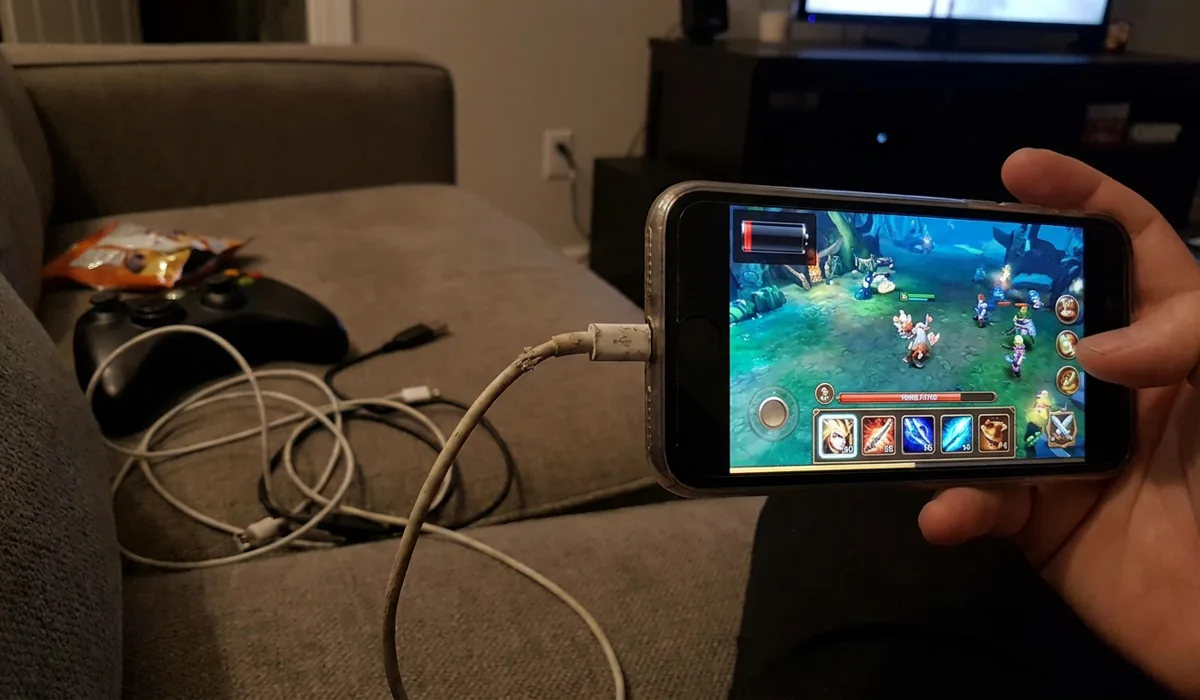
So you drop into a match at 70 percent. Twenty minutes later the back of the phone is warm, frames are dropping, and the meter reads 40.
That drop usually isn’t a dying battery. Screen brightness, background apps, heat, a weak signal, and the game’s own graphics load are all pulling from the same cell at the same moment, and the phone doesn’t get a vote about which one wins.
So here’s the order to work through. Start with the changes that cost you nothing in image quality, then move to the ones that do. Most people stop halfway down the list because the problem’s already gone.
Why Your Phone Battery Drains Fast While Gaming
Gaming is the heaviest thing most phones ever do. The processor, graphics chip, screen, speakers, Wi-Fi and vibration motor are all pulling near full power at the same time. That’s why the drain feels so much worse than video or scrolling.
And heat makes it worse. A warm phone gets less efficient, the system starts throttling, and now the chip is grinding harder for the same frames while burning more power to do it.
The most common causes include:
- Screen brightness pinned at maximum for long sessions
- A display running at 90Hz or 120Hz
- Ultra or HD graphics settings inside the game
- Weak Wi-Fi or mobile signal, which forces the radio to transmit harder
- Background apps syncing, downloading, or playing audio
- Location services and Bluetooth left on the whole time
- Playing while the phone is charging, which builds extra heat
- A thick case that traps heat against the back panel
- An old battery with reduced capacity and higher internal resistance
- Game ads and video overlays keeping the network busy
- Live wallpapers, always-on display, heavy vibration feedback
Some of this drain won’t go away, no matter what you turn off. A battery that has been through a few hundred charge cycles just holds less energy than it used to.
And a heavy 3D game will always pull more power than a 2D puzzle title. So the aim here is cutting the waste around the game. Not miracle numbers.
How to Fix Fast Battery Drain While Gaming
Work through these in order. The first few take seconds.
Play one short session after each change. That way you know which fix did the work on your particular phone.
1. Find Out Which Apps Are Actually Eating the Battery
Before flipping any switches, go look at where the power is going. Your phone tracks it app by app. The top of that list usually surprises people.
A browser left open can sit right near the top.
To check your battery usage:
- Open Settings on your phone.
- On Android, tap Battery, then Battery usage. On iPhone, tap Battery and scroll to the app list.
- Switch the view to Last 24 hours or Last 7 days.
- Hunt for an app burning a big share of power during hours you never touched it.
Game sitting at number one? Then the graphics and cooling steps below are where your time goes. Something else at the top gets closed or restricted first.
2. Knock Down the Brightness and the Refresh Rate
Here’s the thing. Mid match, the screen is usually guzzling more power than the actual game. Crank a bright panel to 120Hz and it can out-drain the engine itself. Bigger screen, bigger gap.
In a normally lit room, 50 to 60 percent brightness does the job fine. You notice the difference fast.
Yes, 60Hz looks a little less fluid. It also buys back real minutes of play.
Follow these steps on Android:
- Open Settings and tap Display.
- If Adaptive brightness keeps cranking the screen past what you want, switch it off.
- Drag the brightness slider down to about halfway.
- Tap Motion smoothness, Refresh rate, or Smooth display and pick Standard or 60Hz.
Menu names move around by brand. Samsung, Xiaomi and Pixel all call it something different (of course they do). It’s always hiding somewhere under display, though.
On iPhone, the path is Settings, then Display & Brightness, then pull the slider down. Want manual control? Turn off Auto-Brightness under Accessibility then Display & Text Size.
Now play one match and watch the percentage. Two or three percent less per match is a solid, normal result.
3. Turn Down the In-Game Graphics Settings
Most competitive games default to the highest settings your phone can technically run, not the ones it can run comfortably. High frame rate plus HD graphics plus shadows is the fastest way to cook a battery.
Shadows, anti-aliasing, and anything above 60 fps cost a lot of power for a small visual gain. Plenty of players say their aim got better and the stutter went away after turning them down anyway.
Inside the game, do this:
- Open the game’s Settings or Graphics menu.
- Drop graphics quality to Smooth or Balanced rather than HD or Ultra.
- For frame rate, High is enough. Skip Ultra and Extreme.
- Turn off Shadows and Anti-Aliasing, plus any other visual extras the menu lists.
- If you’ve got music playing from somewhere else anyway, turn the in-game music off too. Or at least drop it way down.
But give it a few rounds before you decide it looks bad. Cooler phone, slower percentage drop? That was the fix, and there is nothing to gain from dialing the settings down further.
4. Close Background Apps and Stop Auto Sync
Everything you left open is still refreshing, syncing, and checking for updates while your match runs. On a phone already near full load, that extra work turns straight into heat.
Video apps, cloud backup, and big downloads are the worst of them. One photo backup running quietly in the background can add real drain to a 20 minute session.
To clear things out before you play:
- Open recent apps and swipe away everything you’re not using.
- Go to Settings, then Network & internet or Mobile data, and pause active downloads.
- Turn off automatic app updates in the Play Store or App Store settings.
- Pause the cloud photo backup too, at least till you’re done playing.
- Switch on Do Not Disturb so notifications stop waking the screen.
Most phones have a gaming mode that does several of these for you in one go. Worth switching on if your brand has one.
5. Switch Off Radios You Are Not Using
Every radio costs power, even sitting idle. Bluetooth, GPS, NFC and that hotspot you forgot about can sit there running for hours.
But weak signal is the sneaky one. At one or two bars the phone cranks transmit power up to hang onto the connection. That alone will drain you during an online match.
Here is what to turn off before a long session:
- Swipe down from the top for the quick settings panel.
- Turn off Bluetooth unless your earbuds are wireless.
- Turn off Location, or set it to run only while an app is open.
- Turn off Hotspot and NFC.
- Connect to stable Wi-Fi when you can instead of leaning on mobile data.
- If 5G keeps dropping in and out where you live, set the network to 4G/LTE in the mobile network menu.
Sit closer to the router. Steadier connection, less power burned. The far corner of the house does the opposite.
6. Keep the Thing Cool While You Play
Heat and drain feed off each other. Hot phone throttles. Chip works longer for the same result. That makes more heat. Round and round until performance falls off a cliff.
Simple cooling helps more than people expect. Easiest win? Take the case off. Thick rubber and leather trap heat right on top of the chip.
A few habits that actually keep temps down:
- Take the case off before a long match and put it back after
- Stay out of direct sunlight and off soft surfaces like beds or cushions
- Hold the phone so your palms are not covering the top, where the chip sits
- Break for a minute every 30 to 40 minutes and let it cool
- Clip on a small cooling fan if you play competitively for hours
Too hot to hold comfortably? Stop and let it rest. Repeated high heat shortens battery lifespan for good.
7. Stop Playing While Fast Charging
Gaming while plugged in sounds smart. But now you’re making heat in two places at once. The battery heats up from charging, the chip heats up from the game, and the whole thing throttles hard.
Some phones deal with this better than others. Plenty of newer models have a bypass or pass-through mode that feeds the phone directly and takes the battery out of the loop entirely.
To handle charging better during gaming:
- Check Settings, then Battery, for Bypass charging, Direct power supply, or something named like that.
- If your phone and game mode support it, turn it on.
- No such option? Charge to 100 first. Then unplug. Then play.
- Use the original charger and cable, not some five dollar replacement.
- And skip wireless charging while you’re gaming. It runs hotter than a cable does.
So a phone that charges slow and stays cool holds a healthy battery way longer than one that spends its life hot on a fast charger.
8. Update the Game, Update the System, Clear the Cache
Developers push out patches for power bugs, memory leaks, broken frame limiters, all of it. An old build might be rendering way more frames than it needs to, burning power for nothing.
System updates count too. They carry power management changes and GPU driver improvements built for your specific chip.
Three things to check, in this order:
- Open the Play Store or App Store, find the game, and tap Update if one is waiting.
- Go to Settings, then Software update, or General then Software Update, and install anything pending.
- On Android, open Settings, tap Apps, pick the game, tap Storage, then Clear cache.
Clearing the cache won’t touch your account or your progress. That stuff lives on the game’s servers. All it does is dump temporary files that got fat.
9. Reset Settings or Replace the Battery
Save this one for last, once everything above has struck out. If the phone is still draining fast on light use, you’re probably dealing with a deeper software issue or a battery that’s just worn out.
Start with battery health. On iPhone, open Settings, tap Battery, then Battery Health & Charging and read the maximum capacity figure. Android brands differ, and some bury health inside a device care or diagnostics app.
If health looks fine and the drain is still bad, try this order:
- Restart the phone and test with one short session.
- Back up your data to cloud storage or a computer.
- Use Reset all settings instead of a full wipe, since your files stay put.
- Reinstall the game fresh from the store.
- Test again before you go anywhere near a factory reset.
A capacity number well under 80 percent usually means a tired battery. At that point a professional replacement beats any setting you could change.
How to Prevent Battery Drain Problems While Gaming
Got it running right? Good. Staying there takes a bit of upkeep.
Two boring things cause most repeat trouble. An update quietly flips your settings back, or some app you installed last week decides to live in the background.
Here are the habits worth building:
- Set brightness by hand and keep it moderate, instead of letting auto push it to full
- After any big game update, go back into the graphics settings and look. Updates love to reset them
- Turn on gaming mode, or at least Do Not Disturb, before the first match
- Try to stay between 20 and 80 percent charge
- Don’t leave it charging all night in a warm room
- If you haven’t opened a game in three or four months, uninstall it
- Once a month, open the battery usage list and restrict whatever heavy app sits near the top
- On long sessions, put the phone down and let it cool. Pushing through is how thermal throttling wins
A mid-range phone still won’t run like a dedicated handheld. But the waste goes away, and the power ends up in the game instead of heat, background sync, and a screen that’s brighter than it needs to be.
Final Thoughts
Fast battery drain while gaming is usually a pile of small problems, not one big failure. Start with the battery usage list. Then the screen, then graphics settings, then background apps and radios, and save heat and charging habits for last.
Resets and battery replacement go at the very bottom of the list. They take the most work and fix the fewest cases.
The symptom matters too. Drain in one specific game points at that game’s settings, while drain across everything points at the battery or the system.
So which one actually helped, lowering the refresh rate or dropping in-game graphics quality? Drop a comment with the phone model and the game played most.